
To create this Tag you will need:
PSP and Animation Shop
Both sold by Corel
A close-up tube
I used art by Elias Chatzoudis
This tube was part of MPT's Christmas gift 2010
MPT tubes and License can be found at MPT
AAA Filters-Marble Mask
AAA Frames-Foto Frame
Xenofex 2 - Constellation
Xero-Porcelain
Ready?
Lets Begin!
New Image 600x600
Choose a dark color from your Tube for your FG
and a lighter shade of your dark color for your BG
Make a FG/BG Gradient on the FG
Angle 45-Repeats 3
Fill with your gradient
Adjust-Blur-Radial Blur
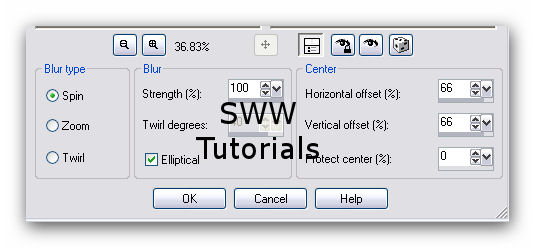
Duplicate layer - Mirror and Flip- Merge visible
Resize 600x250
AAA Filters - Marble Mask - Default
Grab yourself a screen capture of your tag however you do it
I use Ashampoo Snap 3
Copy your screenie to your clipboard and paste as a new Image
Rasterize your new Image and copy it, then delete it
Back to your Tag
Paste as new layer
If necessary, move it so it covers your whole tag
Crop to 600x250
Delete the Bottom Layer
Duplicate your BG Layer for a total of 3
On each of the 3 layers:
Xenofex 2 - Constellation

Hit the Random Seed button once for each layer
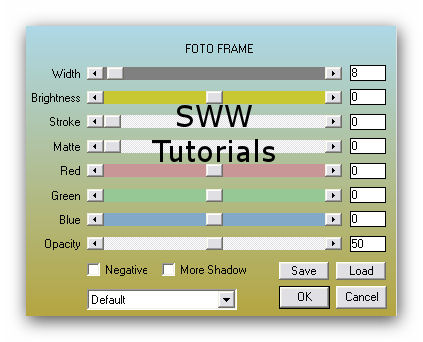
Then AAA Frames-Foto Frame
Paste your Close-up Tube and move to the left
Give it a blurry Drop Shadow
Crop your Tag
Highlight the Layer under your Tube
Rectangular selection tool
Select a rectangle to the right of the Tube, inside the AAA Frame
Fill with your light color like so
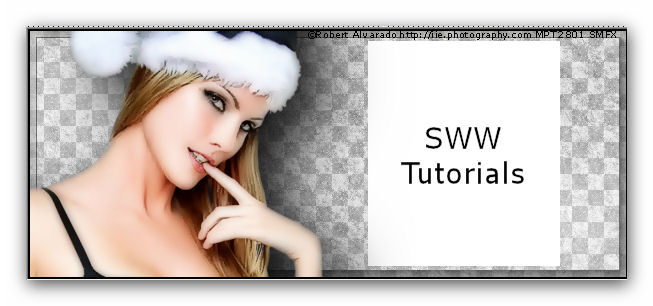
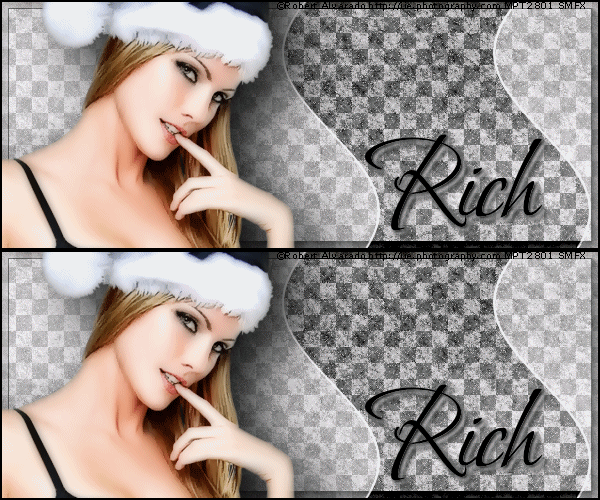
(This sample uses art by Robert Alvarado-another MPT artist-Tubes and lic HERE)
Keep selected-contract selection by 2
Fill with your dark color
Deselect
Effects-distortion effects-Wave
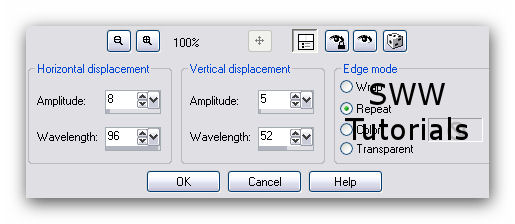
Use your Distort Tool to pull the top and the bottom of the wave off the Tag
Change the blend mode to overlay and crop your Tag
New Layer-Send to top
Fill with your dark color - select all -contract 2 delete-deselect
At this point- Hide your Art and Border layers
We're going to get what we need for the Avi
Copy the bottom layer of Tag and paste as new image (Avi)
Copy the next one up on Tag and paste as new layer on Avi
Copy the next one up on Tag and paste as new layer on Avi
Crop tool-150x150
Don't crop any area with the AAA Layer selected
Do the AAA Foto Frame on each layer
Make your wave layer the same way you did for the Tag
Add the 2 pixel border
Set aside
Back to our Tag
Highlight the top layer and add your name, CR Info and Lic# if necessary
Hide your 3 Constellation layers and merge visible
Animate as usual
If you don't know how to do this, I have written a mini-tut
describing the process HERE
Here's what the set looks like in two different flavours



Tutorial Idea, Tags/Avis ©Shirley Franklin 2010-2012
www.shirleyswebworks.com