To create this Tag you will need:
An Image I used one of my own Please do not use my photos without permission
Filters: Filters Unlimited 2 BKG kaleidoscope - 4QFlip UpperL and Zandflower Import into Filters Unlimited My Selection HERE
Ready? Let's Begin! Shift+D to make a copy of your Image Close out the original Resize your Image to 350px on the longest side Edit - Copy
New Image 650 X 500 Select All - paste INTO selection Deselect BKG Kaleidoscope - 4 QFlip UpperL - Default settings Duplicate Filters Unlimited 2.0 - Tile and Mirror - Distortion Mirror(horizontal) - 126 Change the blend mode here - I used Luminnce, but you choose the one you like best Merge - Duplicate
New Layer - Fill with a dark or contrasting color Select All - Contract 50 - Delete - Deselect - Enhance Edges Merge Down BKG Kaleidoscope - Zandflower - Default Settings Magic Wand - Click in the solid colored area in the center Expand Selection by 1 Promote Selection to Layer - Deselect Select your Middle Layer Change the Blend Mode to Screen or one you like better Merge down
Now you should have two layers The Bottom and Promoted Selection Layers Select the Bottom Layer Load my Selection Promote Selection to Layer Keep Selected New Layer Effects - 3D Effects - Cutout
Deselect
Select the promoted selection layer Drop Shadow - 0, 0,100 and 5
Your Resized Image should still be in your Clipboard Paste it as a new layer on your Tag Move where you want it Select All - Float - Defloat New Layer Cutout - Change the Opacity to 100 Deselect
Let's clean this up a bit Hide the Bottom Layer Merge Visible Unhide the Bottom layer Add your Name and CR Info If you don't want to animate, save as a gif and you're done
ANIMATION Select the bottom layer Fire up Animation Shop (AS) Paste as a New Animation Effects - Insert Image Effect Fade to Grey
Scroll to the first frame, click to select it and Delete Now you should have 20 Frames Edit - Select All - Animation - Reverse Frames - Edit - Copy - Edit - Undo Reverse Frames Scroll to the last frame - Click to select - paste after current frame Now you'll have 40 frames This is your Tag
Go back to PSP Hide the bottom layer Copy Merged
Back in AS Paste as a new animation Hold down your ctrl key and keep hitting the "L" key until you have 40 frames Select All - copy Go back to the Tag Select All - Edit - paste INTO selected frame Click to place Animation - Frame properties - Change the Number to 25 Save as a gif and you're done!
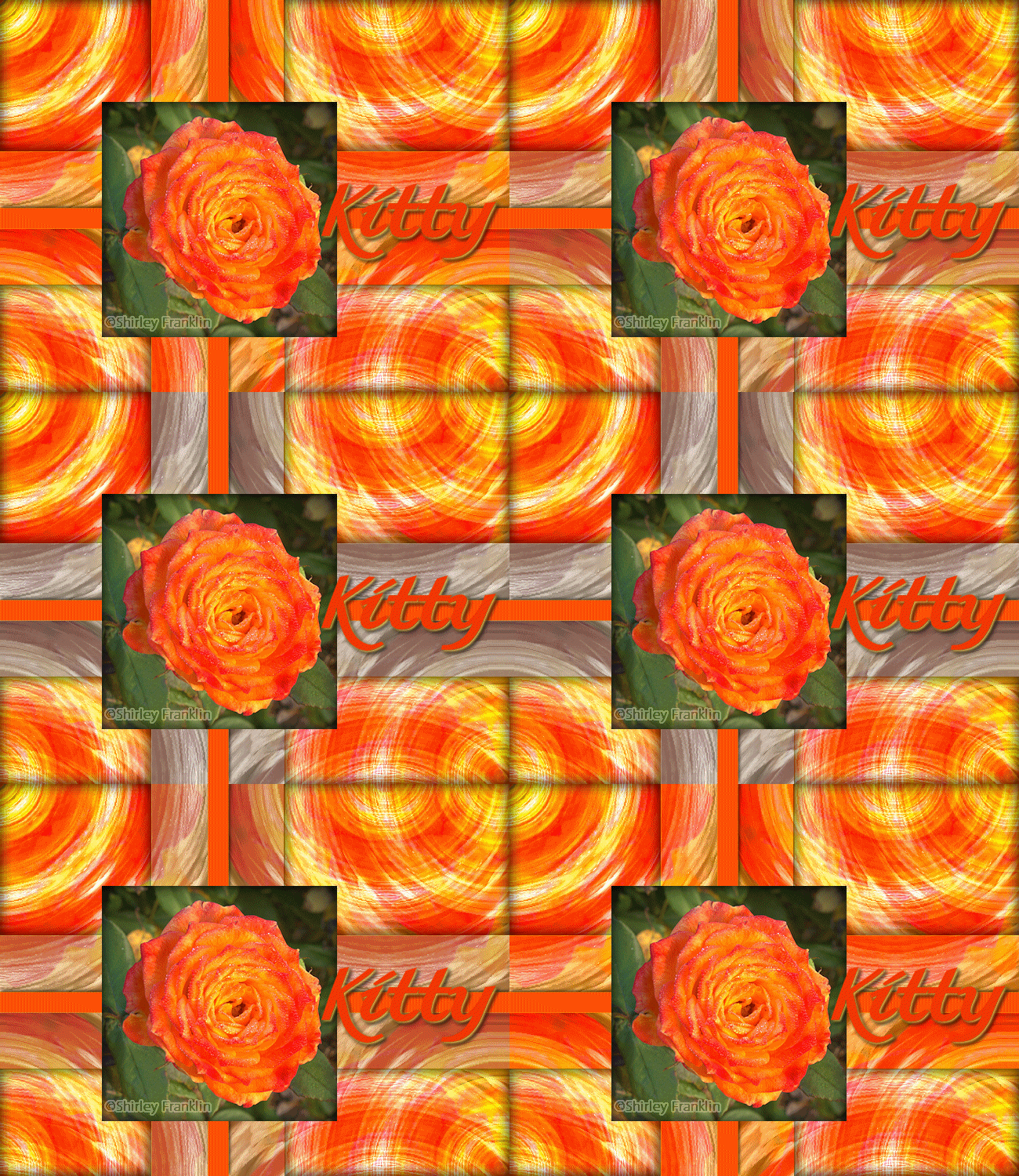
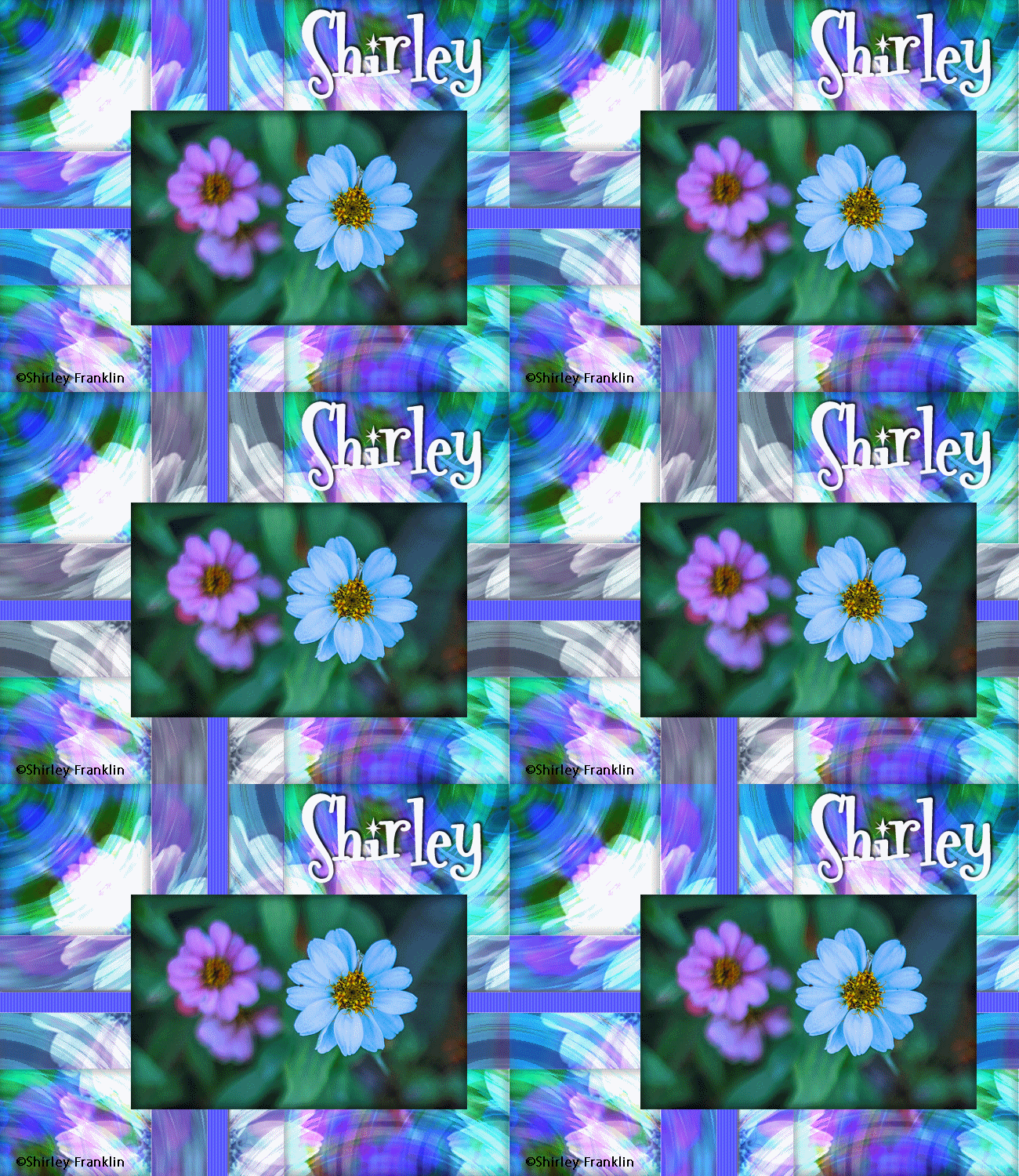
Here are a few more samples, all using my photos
The original Tag that inspired the Tutorial
If you try this, or any of my Tutorials I would love to see what you made Please Post results and comments on my Fanpage
|