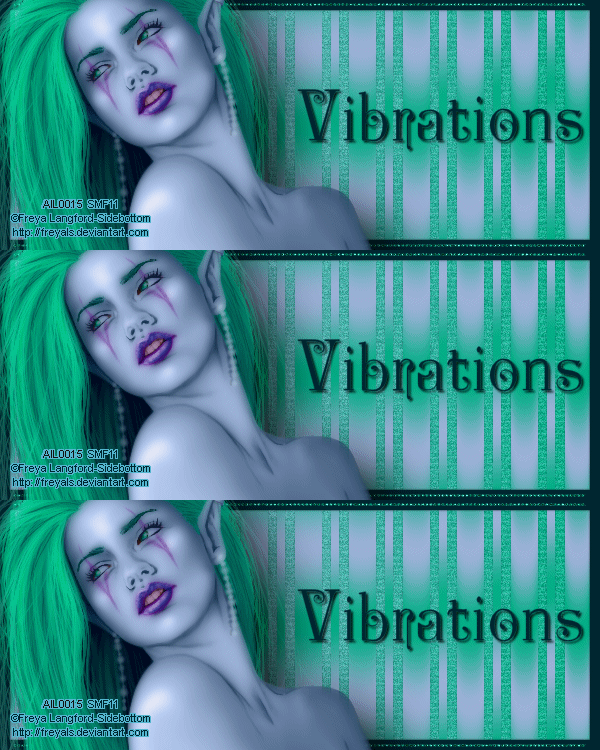
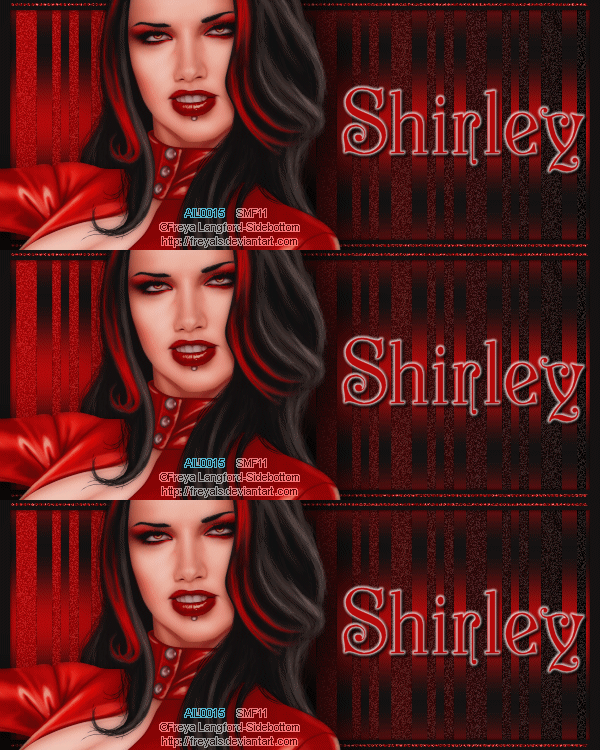
To create this Set you will need: A Tube I used art by Freya Langford-Sidebottom Tubes and License available at AIL My Selection HERE Medhi - Vibrations 1.1 MuRa's Meister - Copies DSB Flux - Bright Noise
Ready? Let's begin!
Choose two contrasting colors for your BG and FG Make a FG/BG Gradient on the FG Linear - Angle 90 - Repeats 0
New Image - 600x250 Fill with your Gradient DSB Flux - Bright Noise - 18 - Mix Checked
New Layer Load my Selection Fill the middle one with one of your colors and the outside ones with your other color Deselect MuRa's Meister - Copies - Line Preset - Default Settings
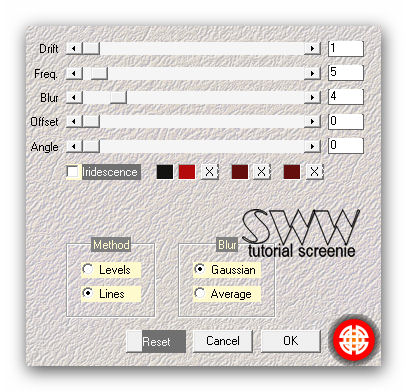
Medhi - Vibrations 1.1
Drop Shadow - 0, 0, 60 and 3
New Layer - Fill with the Darker of your Colors Select All - Contract 10 - Delete - Deselect Drop Shadow - 0, 0, 60 and 3
Pen Tool Point to point - BG Null - FG your other Color Line Style Diamonds - Line Width 2
Hold down your Shift Key and draw a Line from top left to top right You'll notice how holding the Shift Key down, Constrains it to a straight line Convert to Raster - Duplicate - Merge down Duplicate - Image - Flip - Merge down Duplicate this Lines Layer twice for a total of three Layers On each of these - DSB Flux - Bright Noise 100 - Mix Checked - hit the Mix button once for each Layer Hide the top two Layers for now
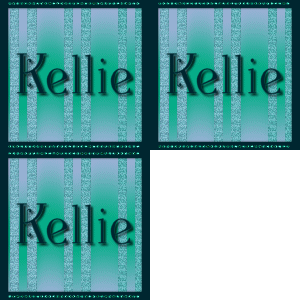
Let's get what we need for the Avatar Shift+D to copy your Tag Crop to 150x150 Make the Border and Lines Layers Like we did for the Tag Add your Name or Initial Animate like we will for the Tag
Back to our Tag Copy your Tube and Paste as a New Layer Place as Desired - Drop Shadow of choice Crop your Tag Add your Name, CR Info and License#
ANIMATION Edit - Copy Merged In Animation shop - Edit- Paste as new animation Back in PSP Hide the bottom Lines Layer and unhide the middle one Edit - Copy merged In Animation shop - Edit - Paste after current frame Back in PSP Hide the middle Lines Layer and unhide the top one Edit-copy merged In Animation shop - Edit- Paste after current frame View animation- If you like it, save as a gif and you're done!
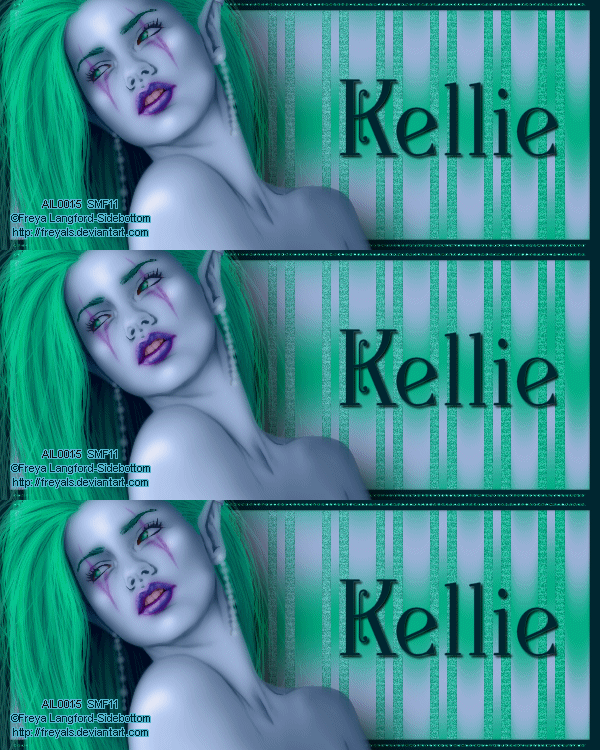
Sample Sets:
If you try any of my Tutorials I would love to see what you made! Please leave a link in the comments section on my Blog
Tutorial Idea, Tags/Avis ©Shirley Franklin www.shirleyswebworks.com
|